Tutorial

Learn Blade, one tap at a time.

A hands-on guide for CPM’s team and clients. Pick your path, follow the steps, and try each one in the real app.

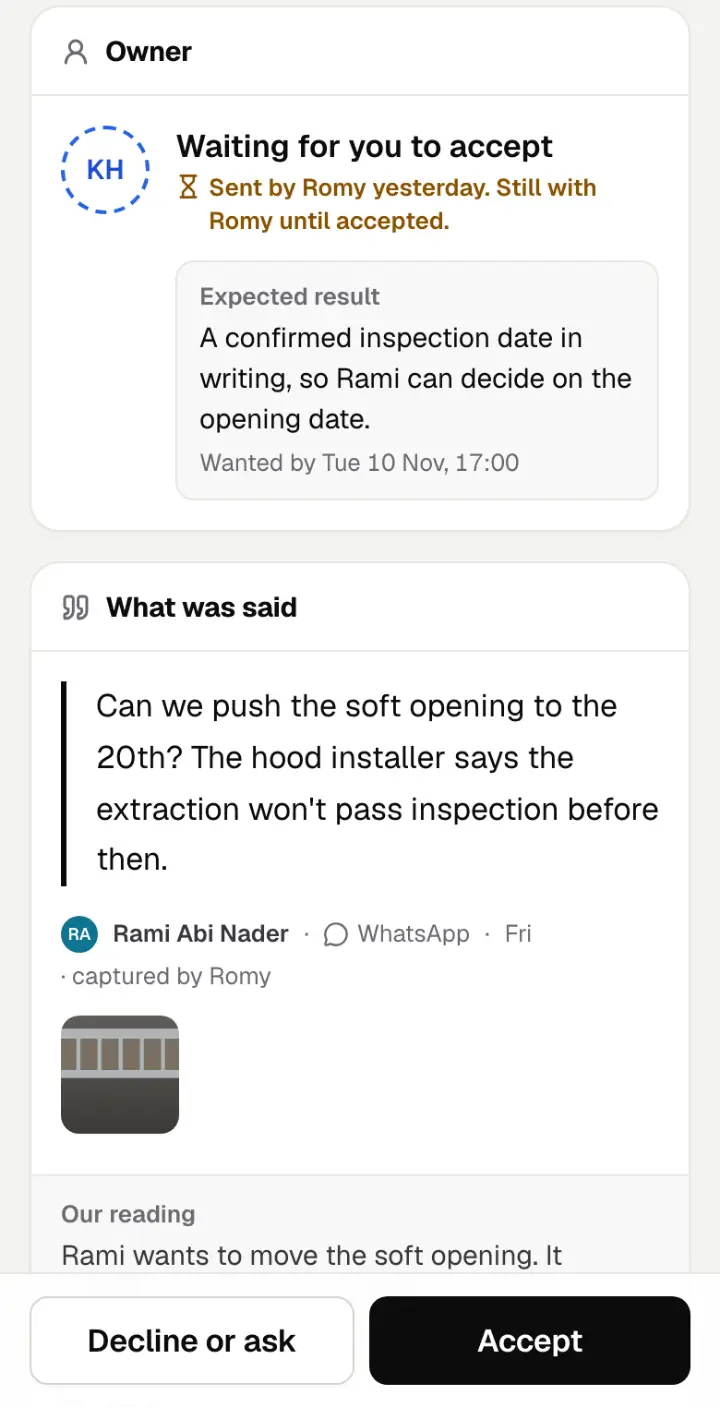
1Every request is written down once, in the client’s own words, so nothing depends on someone remembering it.

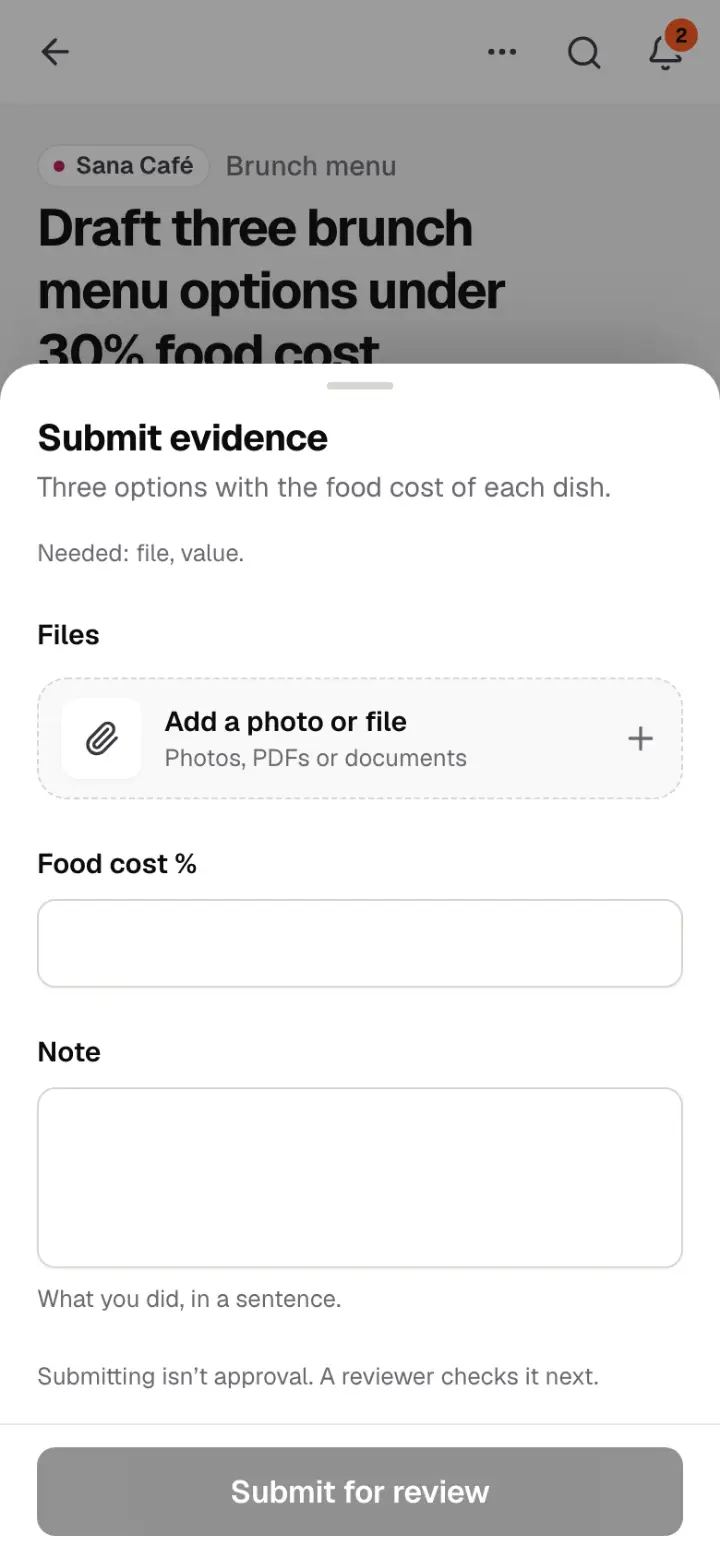
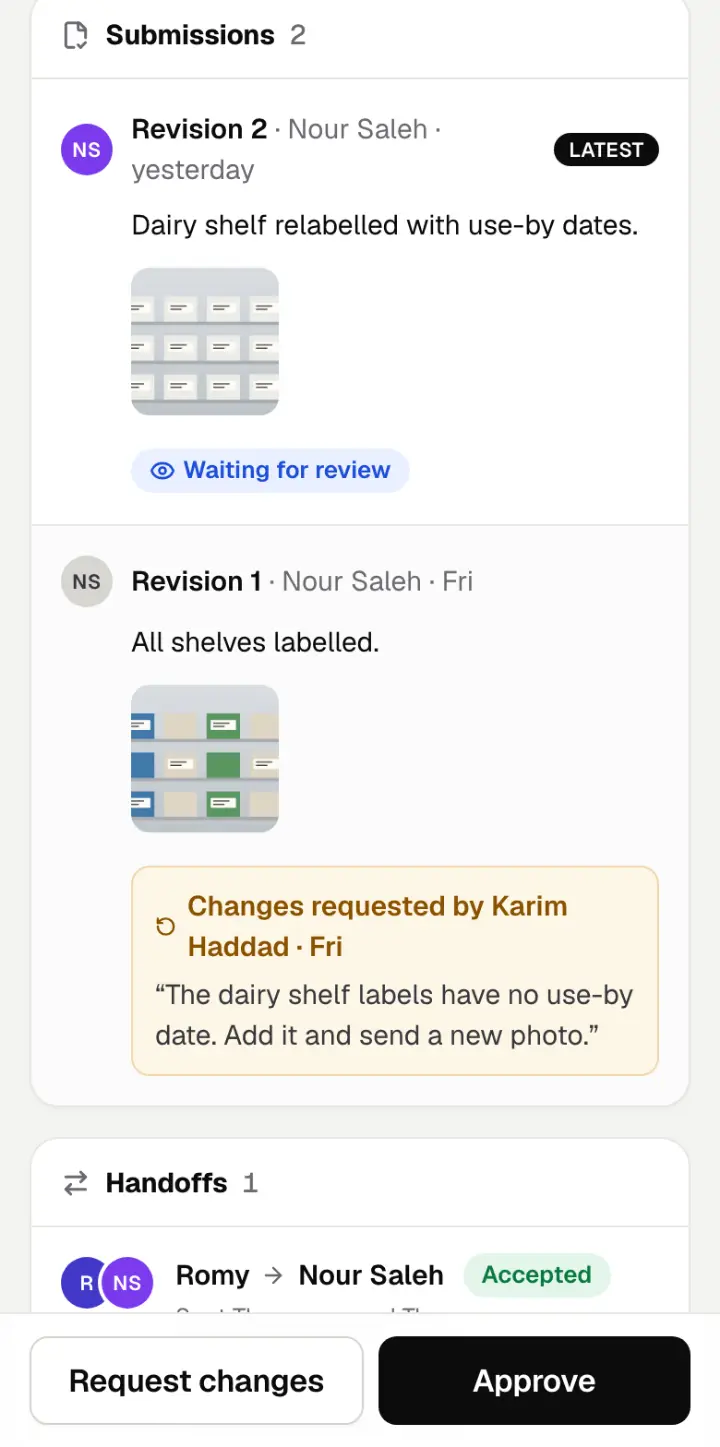
2It has one owner, who said yes to it, and it is proved with evidence before it counts as done.

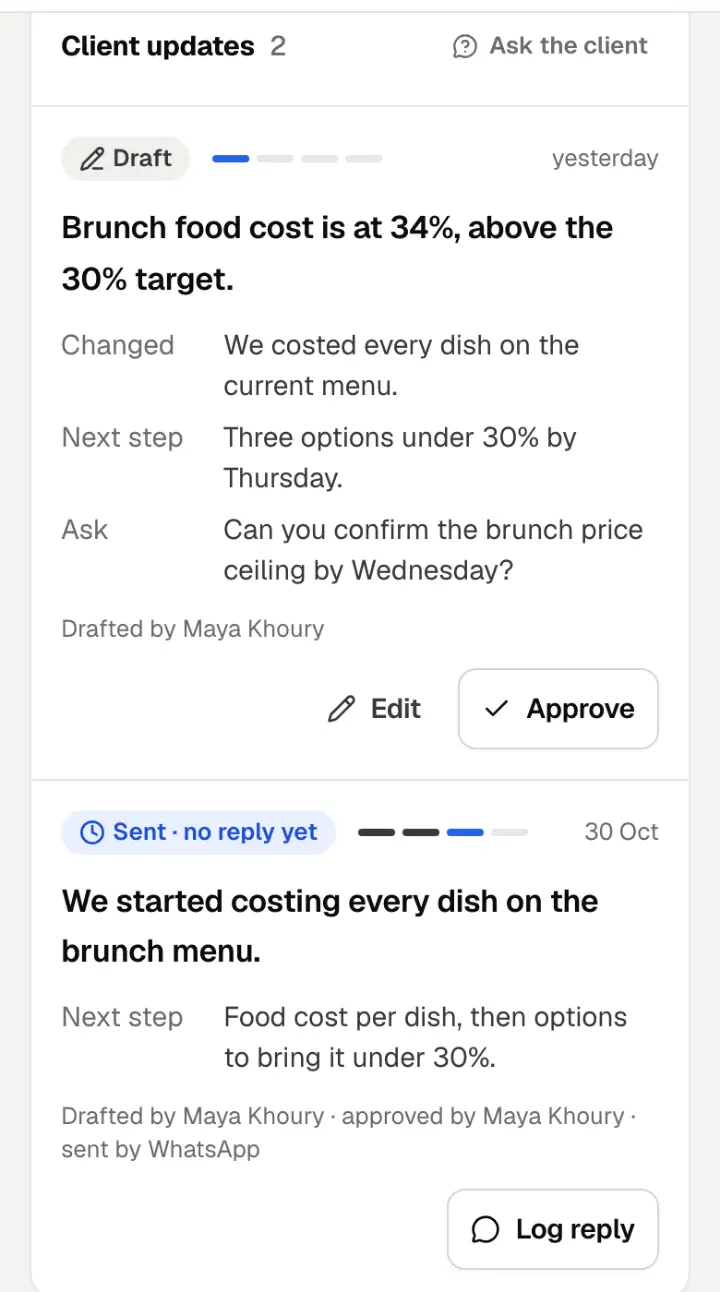
3The client is kept up to date, with updates that are checked before they go out.

What you need:A phone or a laptopYour invite email

Clients · Your portal with CPM · about 15 minutes. Your ticks are saved on this device.

You’ve done every step on this path. Nice work.

Getting in

Three short steps, and you never have to do them again.

Open your invite

About 3 min

You get an email that says “… invited you to CPM on Blade”. Tap Accept the invite.

Blade opens a page called Join CPM on Blade. Fill in:

  • Your name: as your colleagues know you.
  • Choose a password: at least 10 characters.
  • Type it again: the same password.

Tap Join and sign in. That’s it, you’re in.

The invite works for seven days, and only for the email address it was sent to. Already have a Blade account? Blade asks for that password instead.

Try it now

Find the email from Blade in your inbox. Not there? Look in spam.
Sign in

About 2 min

On the page Sign in to Blade, type your Email and Password, then tap Sign in.

No password to hand? Tap Email me a sign-in link. Open the email on the same phone and tap the link. It works once, for 15 minutes.

Forgot your password? Tap Forgot password?, then Send the link. The link works once, for an hour. Choosing a new password signs you out on your other devices.

Once you’re in, your phone stays signed in for 30 days, so you are not asked for a password every shift.

Try it now

Open the sign-in page and sign in.

Open the sign-in page

Put Blade on your home screen

About 1 min

Blade then opens like an app, with its own icon: an orange square with a lightning bolt.

  • iPhone: open Blade in Safari. Tap the Share button, then Add to Home Screen.
  • Android: open Blade in Chrome. Tap the ⋮ menu, then Install app (on some phones: Add to Home screen).

Try it now

Open Blade on your phone, then add it to your home screen.

Open Blade

If you leave CPM

When someone is removed from Blade, their access ends at once. On their next tap Blade signs them out and says “Your access to Blade was removed.” Their name stays in the history.

Your portal

For CPM’s clients. Your portal is your project with CPM, in one place. You only ever see what CPM shares with you.

Look around your portal

About 2 min

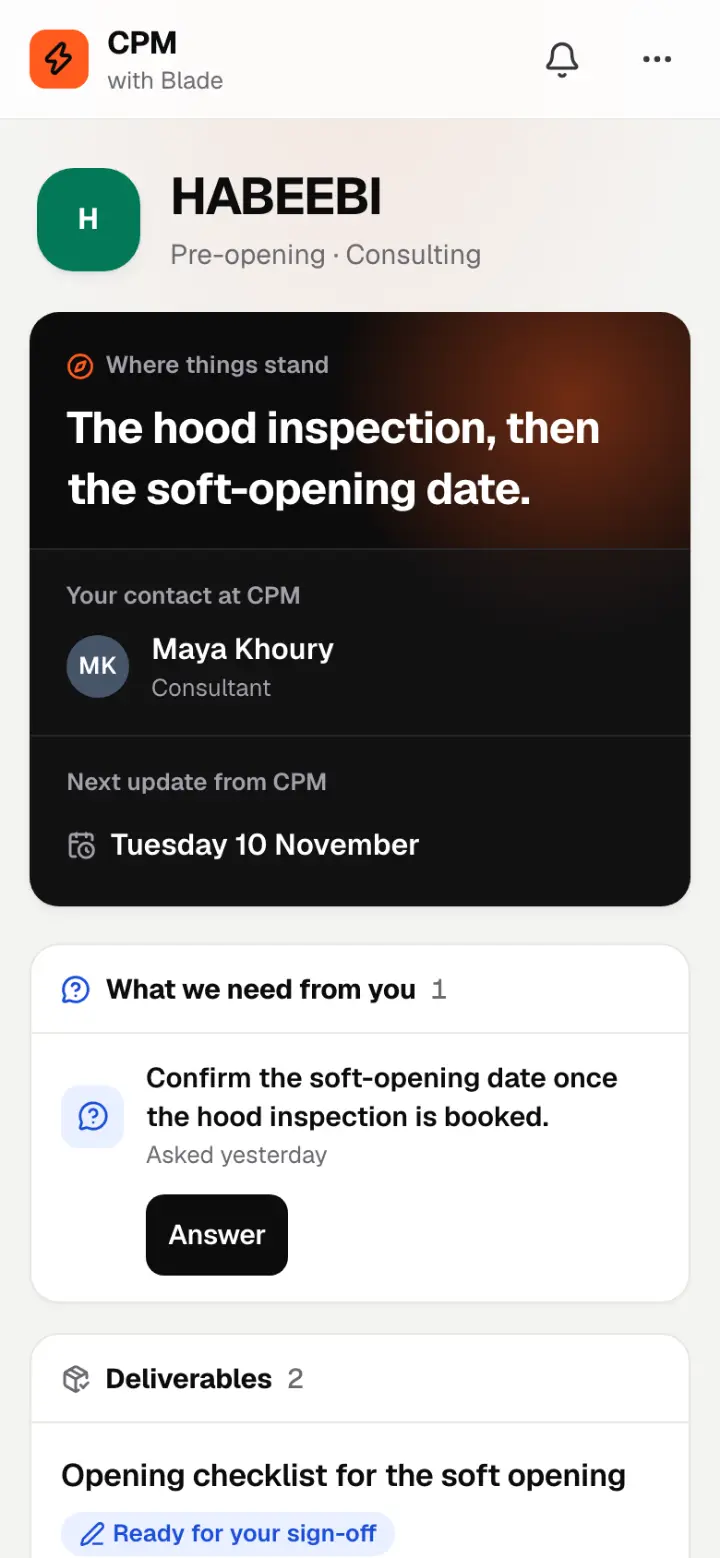
After you sign in you see your project (or a list, if you have more than one). At the top: Where things stand, Your contact at CPM and Next update from CPM.

Below: What we need from you, Deliverables, Updates from CPM, Messages with CPM and Files shared with you.

Updates appear once CPM has sent them. CPM’s own notes never appear here.

The client portal: a dark card with Where things stand, Your contact at CPM and Next update from CPM; then What we need from you, with an Answer button; then Deliverables.
Example: the portal of HABEEBI, a CPM client.

Try it now

Open your portal.

Open your portal

Answer CPM’s questions

About 1 min

Under What we need from you, tap Answer, write Your answer and tap Send answer. CPM sees it straight away.

Try it now

Check What we need from you.

Open your portal

Accept a deliverable

About 1 min

Under Deliverables, one marked Ready for your sign-off has an Accept button. Accepting tells CPM it’s signed off.

Not happy with it yet? Don’t accept: send CPM a message instead.

Try it now

Check your Deliverables.

Open your portal

Message CPM

About 1 min

In Messages with CPM, write your question or note and tap Send. Your contact answers in the portal, and the bell tells you when something is new.

Try it now

Send CPM a short message.

Open your portal

Open your files

About 1 min

Under Files shared with you, tap Open (or Save) next to a file. CPM is told the first time you open it.

Try it now

Open a file CPM shared with you.

Open your portal

If something goes wrong

The questions people ask most. Tap one to open it.

I never got the invite email

Look in your spam or junk folder, and search your inbox for “Blade”. Still nothing? Ask the person who invited you to tap Send again. Only the newest link works, and only for the email address it was sent to.

My link has expired

An invite lasts seven days. A sign-in link works once, for 15 minutes. A password link works once, for an hour. For an invite, ask for a new one. For the others, go to the sign-in page and ask for a new link.

I forgot my password

On the sign-in page, tap Forgot password?, type your email and tap Send the link. Open the email, choose a new password and tap Save and sign in. Or skip the password: tap Email me a sign-in link.

I can’t find something in my portal

Your portal only shows what CPM has shared with you. If you expected something that is not there, send CPM a message in Messages with CPM.

Getting help

Stuck? Write to CPM in Messages with CPM on your portal, or ask your contact at CPM, shown at the top of your project.