Tutorial

Learn Blade, one tap at a time.

A hands-on guide for CPM’s team and clients. Pick your path, follow the steps, and try each one in the real app.

1Every request is written down once, in the client’s own words, so nothing depends on someone remembering it.

2It has one owner, who said yes to it, and it is proved with evidence before it counts as done.

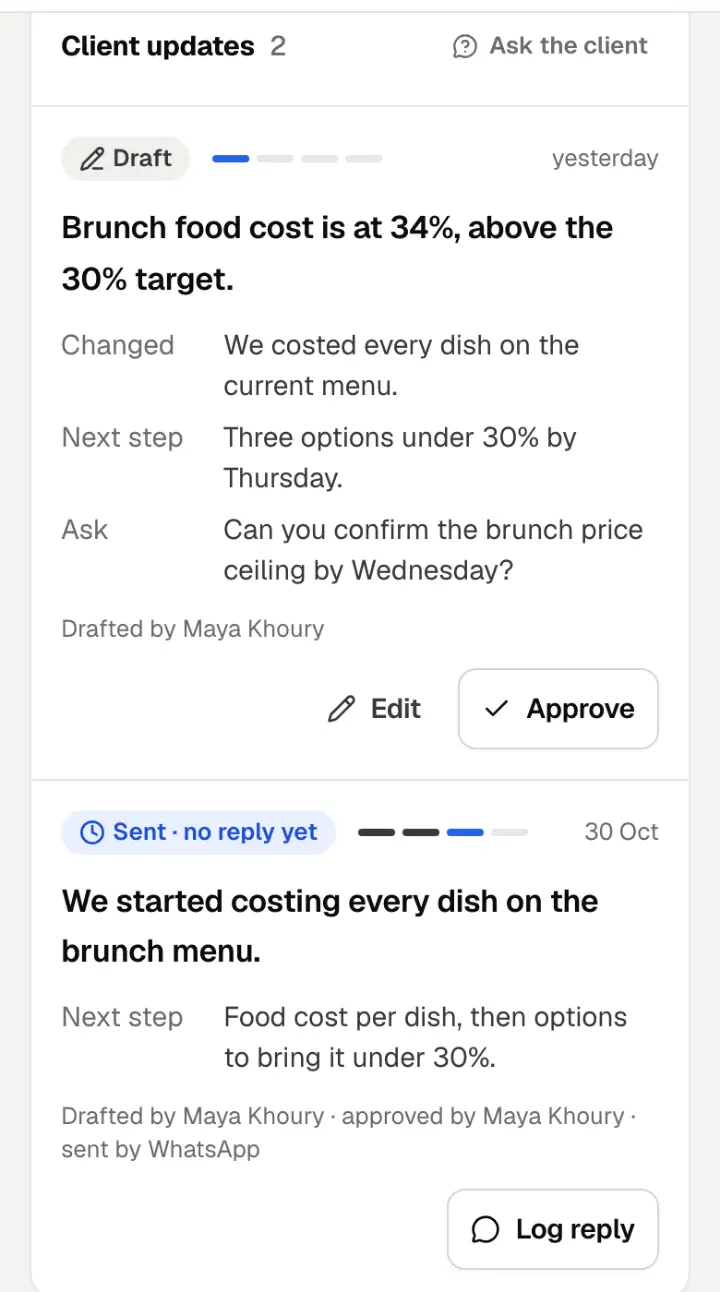
3The client is kept up to date, with updates that are checked before they go out.

What you need:A phone or a laptopYour invite email

Kitchen team · Supervisors and chefs · about 30 minutes. Your ticks are saved on this device.

You’ve done every step on this path. Nice work.

Getting in

Three short steps, and you never have to do them again.

Open your invite

About 3 min

You get an email that says “… invited you to CPM on Blade”. Tap Accept the invite.

Blade opens a page called Join CPM on Blade. Fill in:

  • Your name: as your colleagues know you.
  • Choose a password: at least 10 characters.
  • Type it again: the same password.

Tap Join and sign in. That’s it, you’re in.

The invite works for seven days, and only for the email address it was sent to. Already have a Blade account? Blade asks for that password instead.

Try it now

Find the email from Blade in your inbox. Not there? Look in spam.
Sign in

About 2 min

On the page Sign in to Blade, type your Email and Password, then tap Sign in.

No password to hand? Tap Email me a sign-in link. Open the email on the same phone and tap the link. It works once, for 15 minutes.

Forgot your password? Tap Forgot password?, then Send the link. The link works once, for an hour. Choosing a new password signs you out on your other devices.

Once you’re in, your phone stays signed in for 30 days, so you are not asked for a password every shift.

Try it now

Open the sign-in page and sign in.

Open the sign-in page

Put Blade on your home screen

About 1 min

Blade then opens like an app, with its own icon: an orange square with a lightning bolt.

  • iPhone: open Blade in Safari. Tap the Share button, then Add to Home Screen.
  • Android: open Blade in Chrome. Tap the ⋮ menu, then Install app (on some phones: Add to Home screen).

Try it now

Open Blade on your phone, then add it to your home screen.

Open Blade

If you leave CPM

When someone is removed from Blade, their access ends at once. On their next tap Blade signs them out and says “Your access to Blade was removed.” Their name stays in the history.

Finding your way

Everything you need is one or two taps away.

The tab bar and the sidebar

About 2 min

On a phone, the bar at the bottom has five buttons:

  • Today: what needs you now. Start every day here.
  • Work: every task, with filters such as Mine and Waiting.
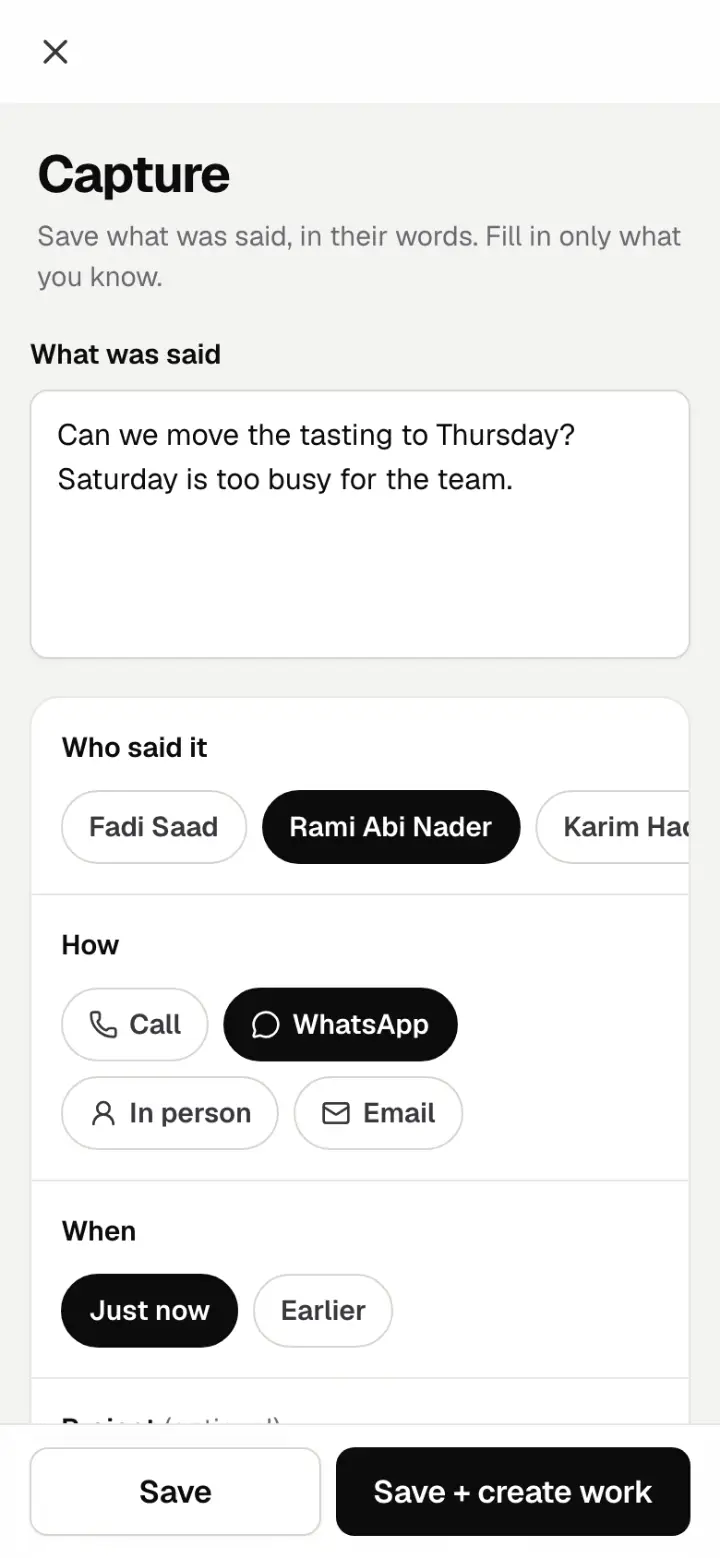
  • The orange + in the middle: capture a request.
  • Projects: your clients. The kitchen team sees Shift here instead.
  • Me: your details, your password, and More (Unsorted, Review, Shift, Exceptions and the rest).

On a laptop, the same places are in the black sidebar on the left, with a white Capture button at the top. You only see the places your role uses.

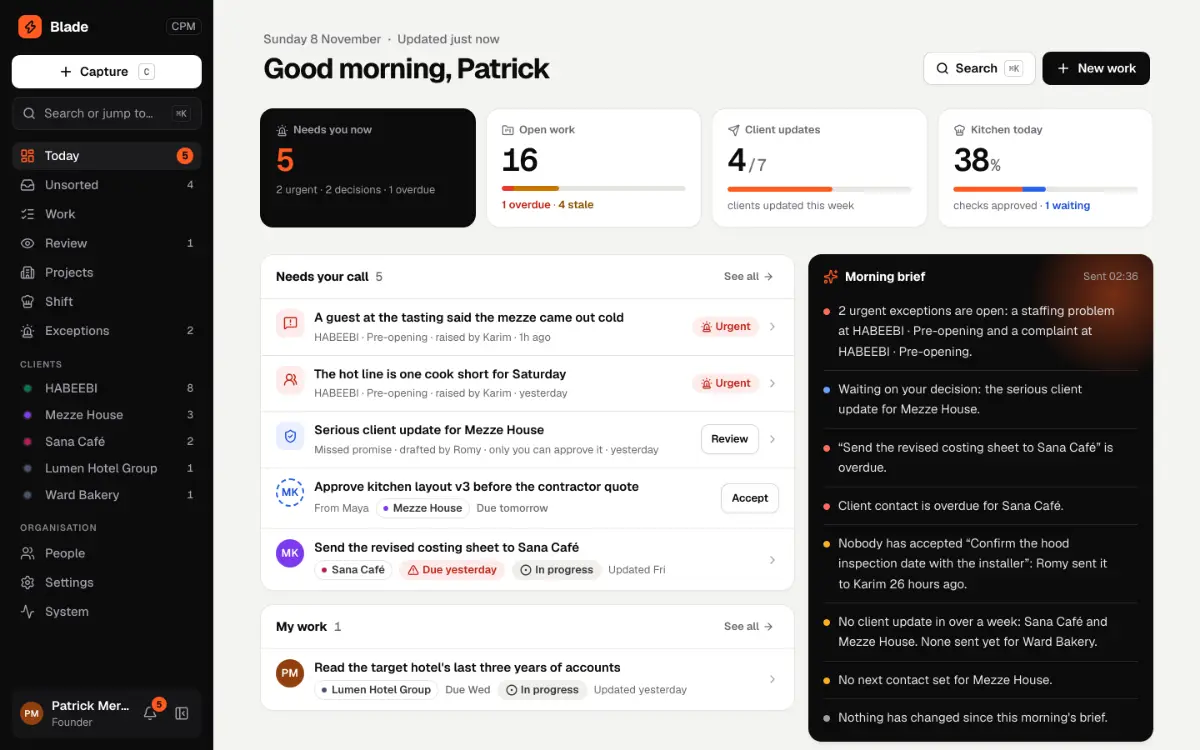
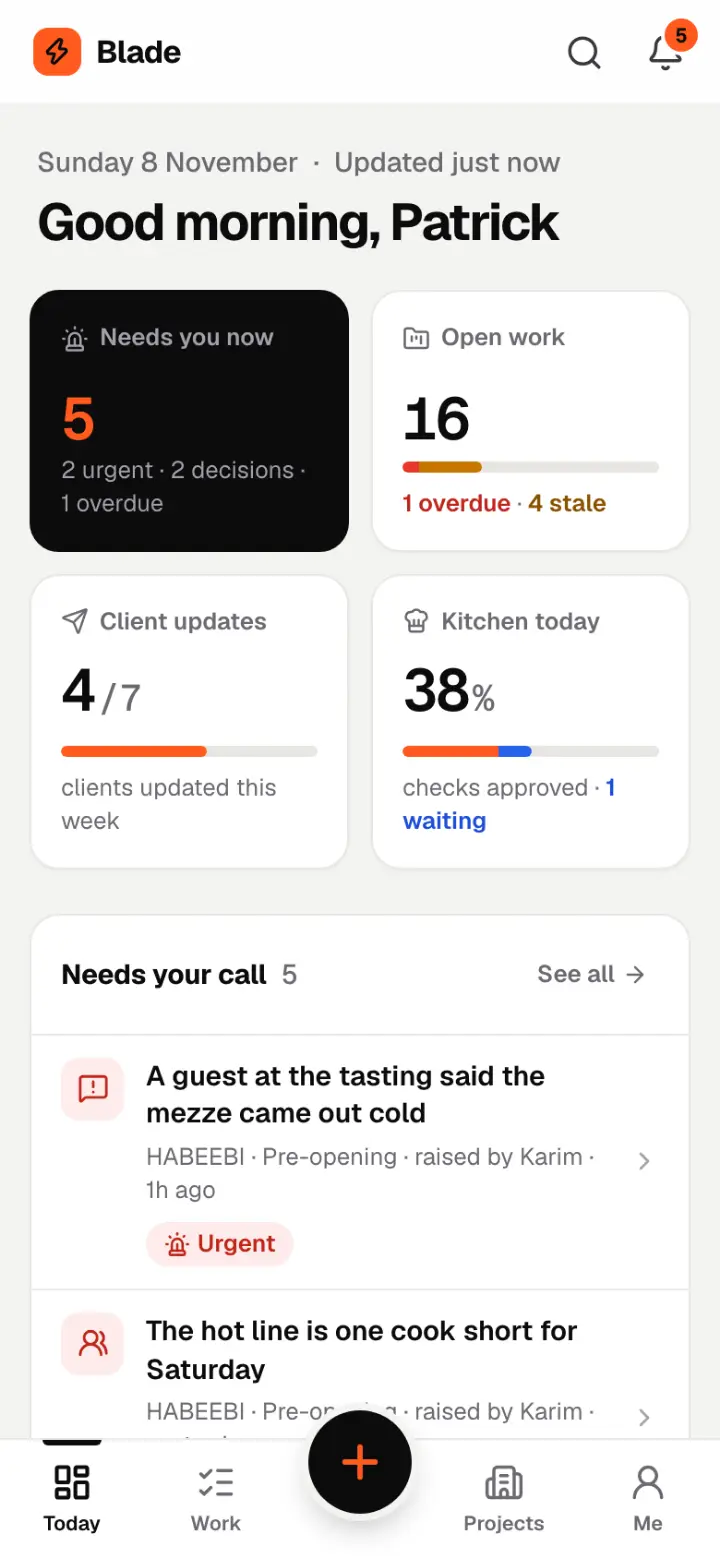
Blade’s Today screen on a phone: four number cards, the list Needs your call, and the tab bar with Today, Work, an orange plus button, Projects and Me.
Example: Patrick’s Today on a phone, with the tab bar at the bottom.

Try it now

Open Today and tap each tab once.

Open Today

The bell

About 1 min

The bell at the top shows an orange number when something is new: a handoff, a review result, an overdue item or an urgent exception.

Tap it to read them. Mark all read clears the number. Closing the bell marks what you saw as read.

Try it now

Tap the bell and read what is new.

Open Blade

What the colours mean

Every colour in Blade means one thing, and it always comes with words. Orange is just Blade’s own colour: it never means a state.

Learn the colours

About 2 min
OverdueDue yesterday

Red: late. Past its date, or a client who should have heard from CPM by now. Deal with red first.

StaleNot moved since Mon

Amber: not moved. Nobody has touched it for a while (three days, unless Patrick changes it). Also used when a handoff has waited too long: Karim hasn’t accepted · 26h

Waiting for KarimIn review

Blue: waiting. Handed to someone who has not accepted yet, or handed in and waiting for a reviewer.

Done

Green: done. Finished, and the evidence was approved.

UnknownDue date unknown

Dashed grey: Unknown. Nobody knows yet, so Blade says so instead of guessing.

MK KH ?

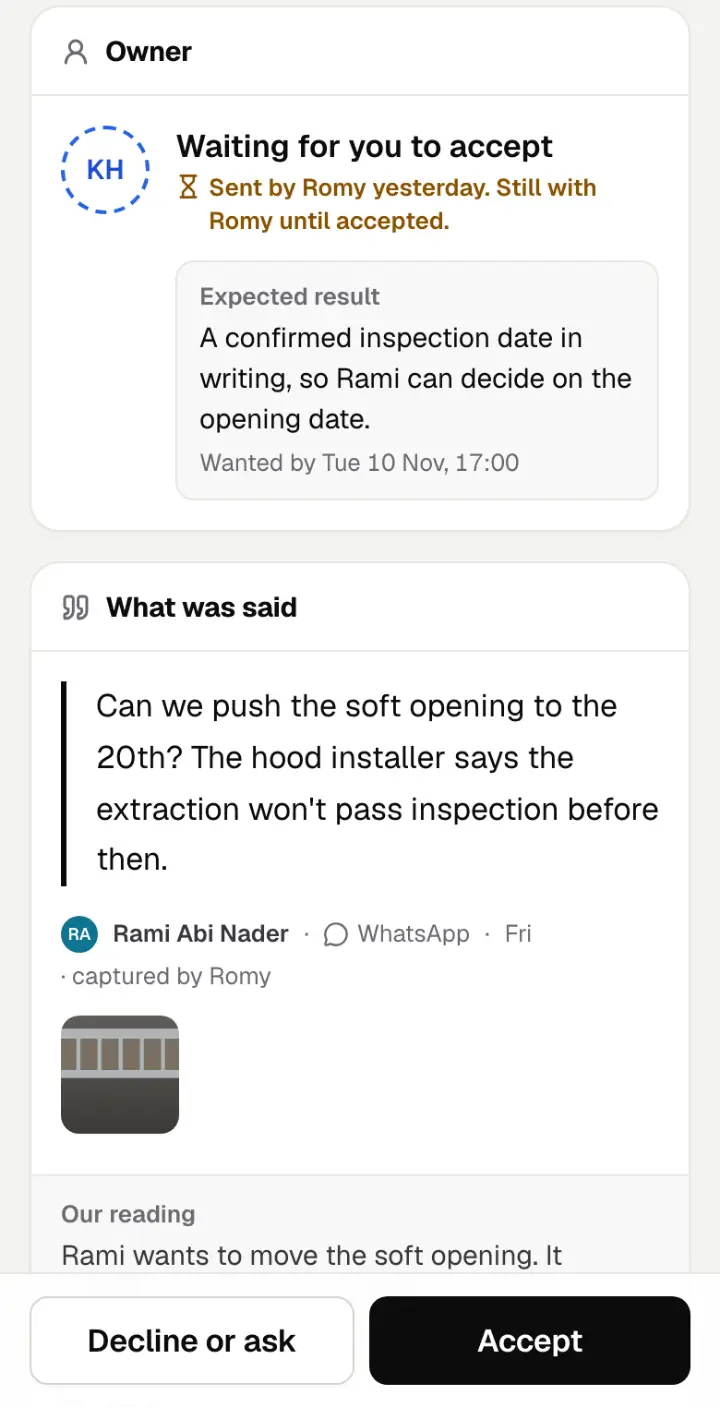
Faces. A filled circle is the owner, who accepted the work. A dashed blue ring means it was handed to them and they have not accepted it yet. A dashed grey ? means nobody owns it.

Reported Source-verified Reviewed

Evidence dots: how sure we are. One dot: someone said so. Two: checked at the source. Three: a reviewer approved the proof.

Kitchen team

For supervisors and chefs. Your shift is a checklist in six steps, with proof for the things that matter.

Open your shift

About 1 min

Tap Shift in the tab bar (or Me → More → Shift). The dark card shows your station, the time, who supervises and how much is done.

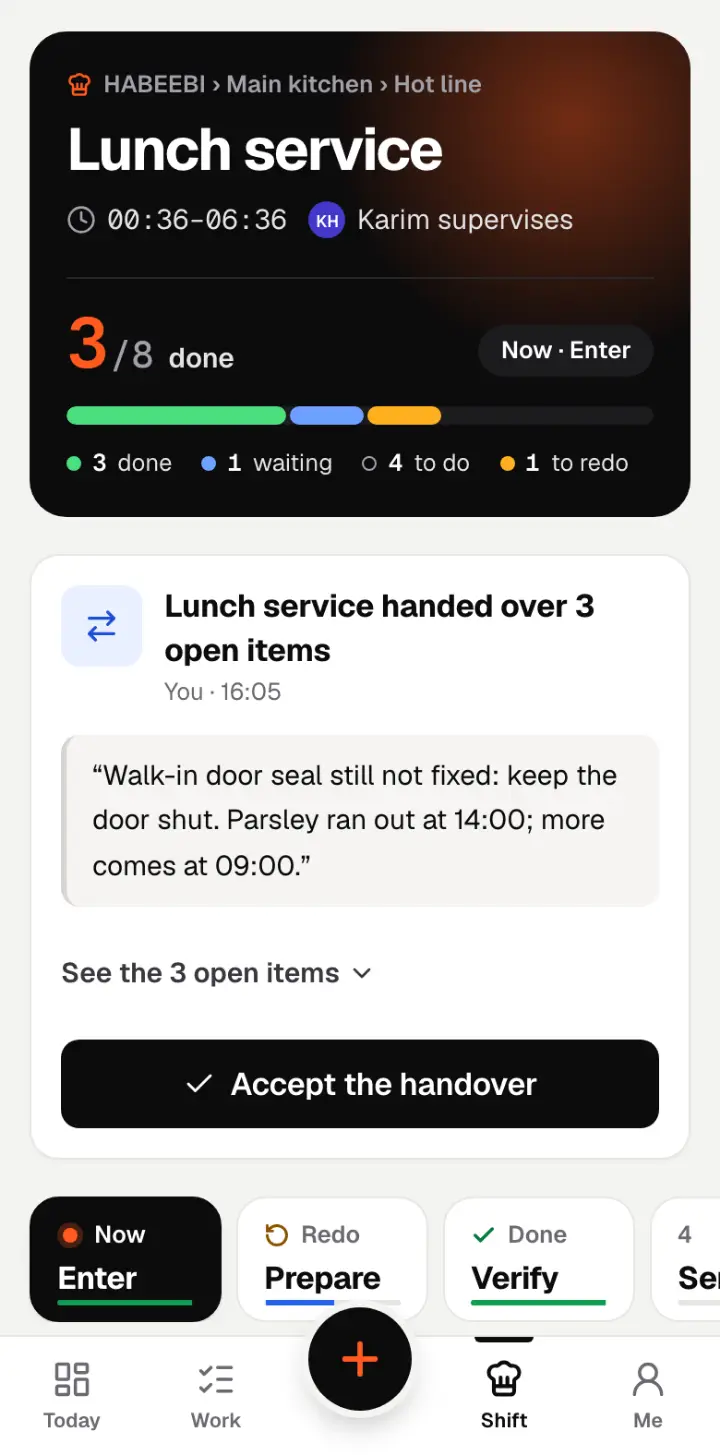
If the shift before you handed over, read their note and tap Accept the handover first. Their open items are now your shift’s.

No shift showing? It says “No shift for you today”. Ask your supervisor to check the station’s checklist.
The Shift screen: a dark card for Lunch service at HABEEBI’s hot line, 3 of 8 done; a handover card with the note and an Accept the handover button; and the step buttons Enter, Prepare, Verify.
Example: Nour’s Lunch service on the hot line, with a handover to accept.

Try it now

Open your shift.

Open Shift

Read today’s standards

About 2 min

On the Enter step you’ll see Today’s standards. Tap each one marked Not read yet, read it, and tap I’ve read it — acknowledge.

You must do this before you can tick the Verify, Serve and Close tasks. When a standard changes, it is marked unread again for everyone.

Try it now

Read and acknowledge today’s standards.

Open Shift

The six steps

About 2 min

Every shift goes through the same six steps, in order:

  1. Enter: arrive, check in, read the standards.
  2. Prepare: your prep.
  3. Verify: the checks.
  4. Serve: service. This is where you report problems.
  5. Close: closing down, often with photos.
  6. Handover: pass on to the next shift.

The tasks in each step come from your station’s checklist. Tap Next: … to move on. A step shows Done only when your supervisor has approved its proof; until then it shows Waiting.

Try it now

Tap through the six steps of your shift.

Open Shift

Photo proof and readings

About 3 min

Each task says what proof it needs:

  • Photo opens the camera. Take the photo, then tap Submit proof.
  • Enter is for a reading, such as a fridge temperature. The safe range is shown, for example Safe range 0–5 °C.
  • Done is a simple tick.

Reading out of range? Blade warns you: “Outside the safe range. Send it anyway”. Do send the real number. Your supervisor is told straight away and a temperature report is filed for you.

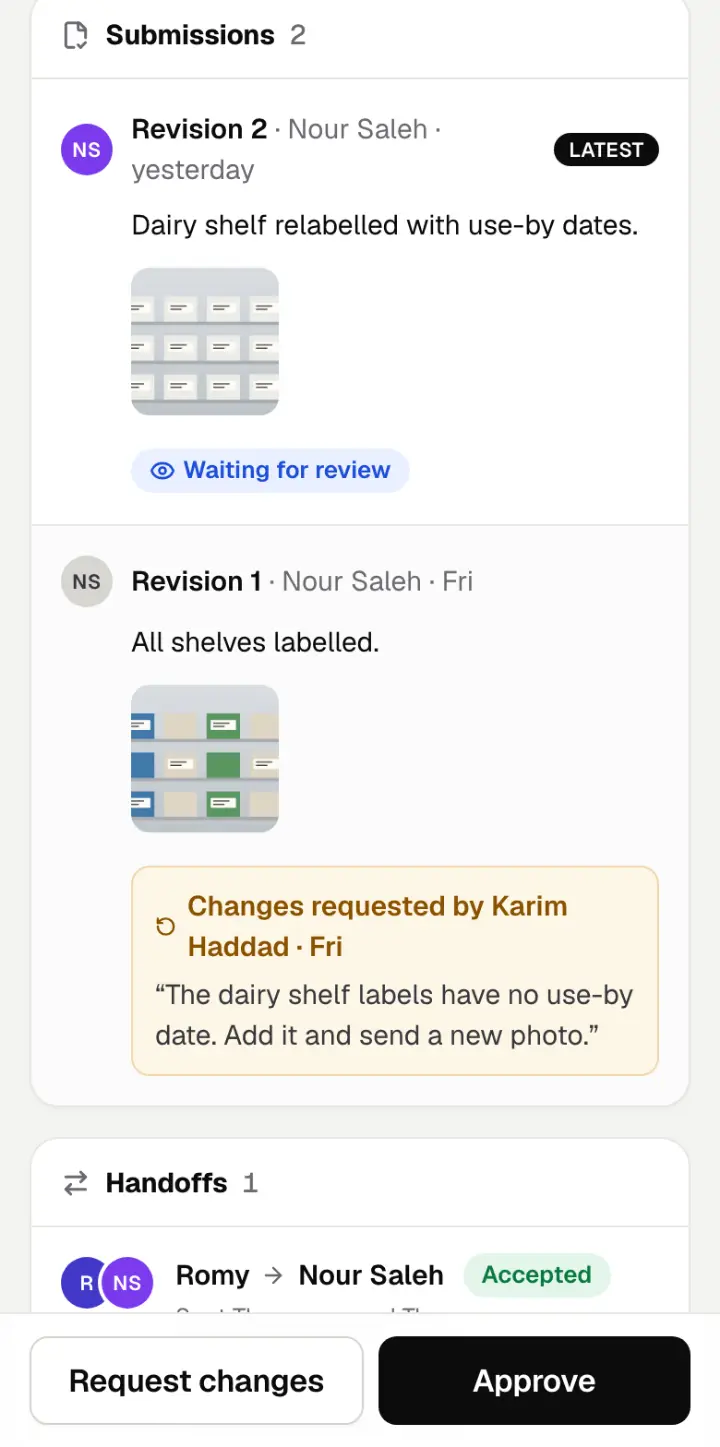
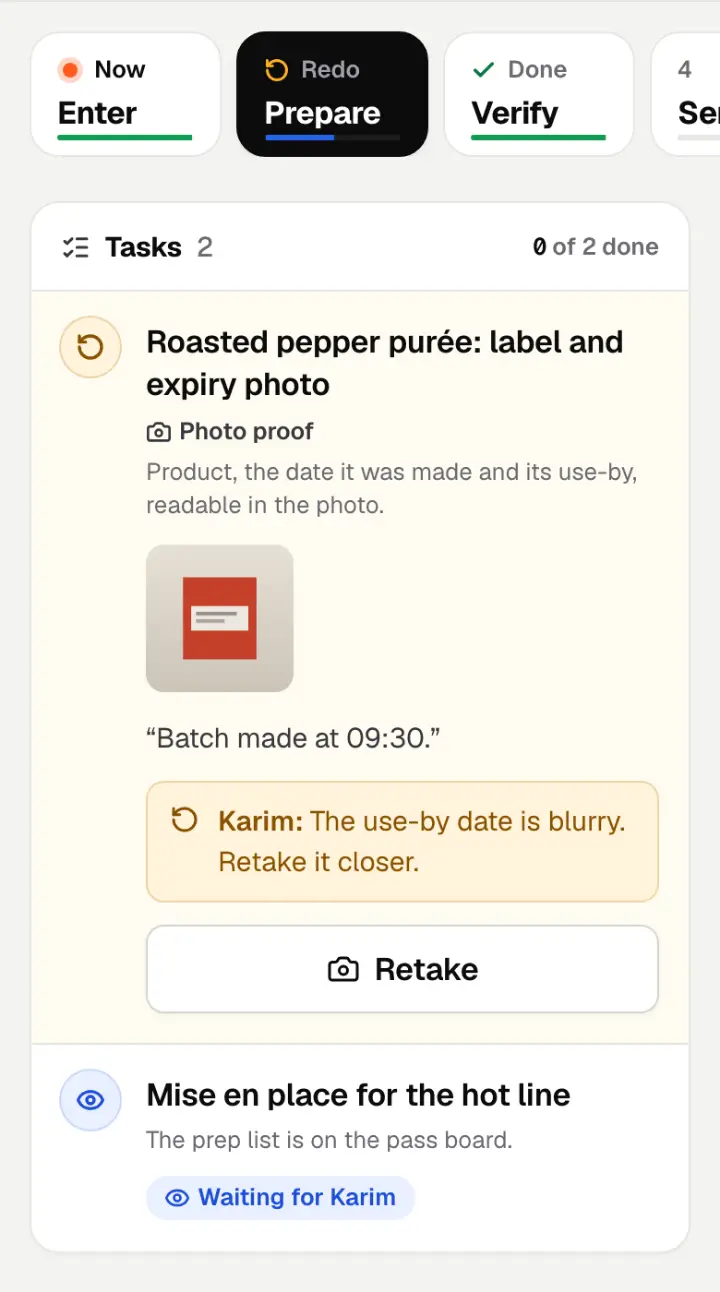
Sent back? The task turns amber with your supervisor’s note. Tap Retake (or Re-enter) and send it again. Earlier attempts are kept.

A Prepare task marked to redo: the photo, the cook’s note, Karim’s note saying the use-by date is blurry, and a Retake button. Below it, another task Waiting for Karim.
Example: a label photo Karim sent back to Nour, with his note and the Retake button.

Try it now

Open your shift and send proof for one task.

Open Shift

Report a shortage, incident or waste

About 2 min

On the Serve step, under Report during service, choose Shortage, Incident, Waste, Temperature or Maintenance.

Write What happened, and if you like What it affects and a photo. Tap Send report. Your supervisor sees it straight away.

Something Patrick must know now (money, a broken standard, a complaint, staffing)? Turn on Urgent, pick the kind and tap Send and tell Patrick. He gets an email at once.

Try it now

Find Report during service on the Serve step.

Open Shift

Supervisors: approve or send back

About 2 min

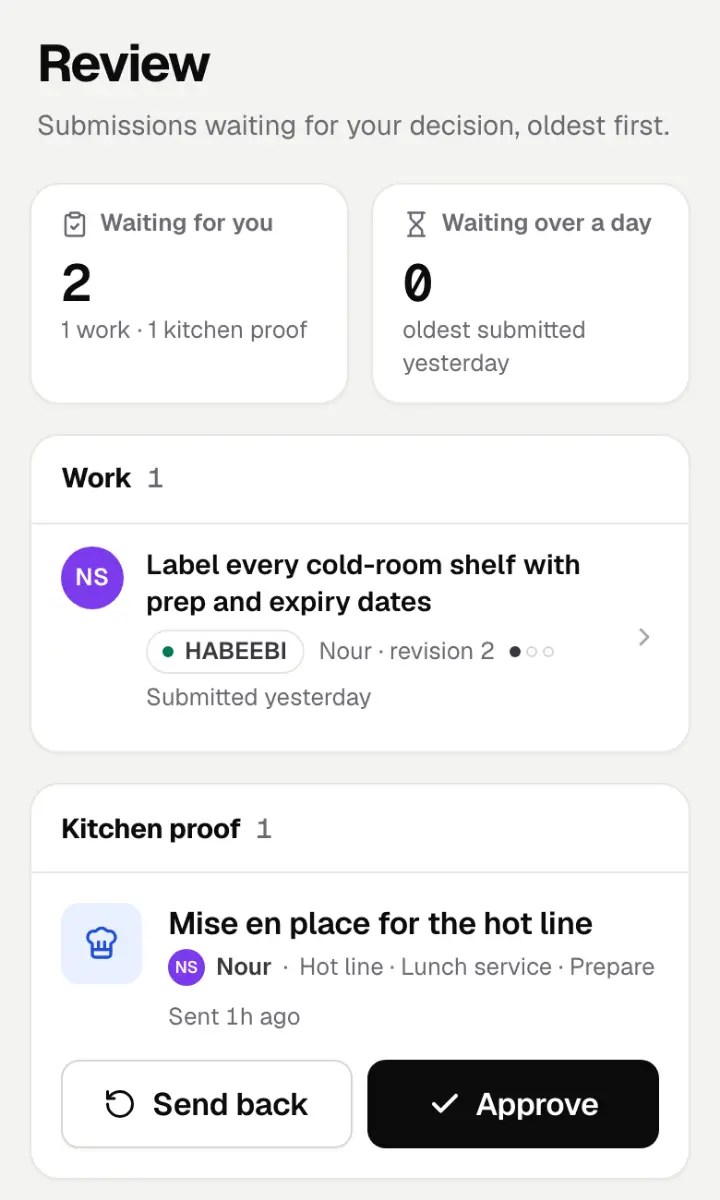
Proof waiting for you is in Review under Kitchen proof, and on the shift itself.

  • Approve: the task is done.
  • Send back: pick what to fix (Photo is blurry, Label or date missing, Reading out of range or Redo the task), add a note if you like, and tap Send back. The cook reads it at the station.

Nobody approves their own proof: another supervisor reviews it.

The Review screen: Waiting for you 2. Under Kitchen proof, Mise en place for the hot line from Nour, with Send back and Approve buttons.
Example: Karim’s Review, with one task and one piece of kitchen proof waiting.

Try it now

Open Review and look at Kitchen proof.

Open Review

Hand over, and accept a handover

About 2 min

At the end of your shift, open the Handover step and tap Hand over to the next shift. Write a Note for the next shift (what’s low, what’s broken, what’s ordered) and tap Hand over. Open items stay yours until the next shift accepts them.

At the start of your shift, tap Accept the handover. Those items are now your shift’s.

If a shift ends without a handover, its supervisors are told.

Write the handover note in one go: unlike the other forms, it is not saved as a draft.

Try it now

Open your shift and find the Handover step.

Open Shift

The golden rules

Six habits that make Blade work. Blade itself holds everyone to them.

Read the golden rules

About 2 min
  1. Write down what was said, in their words. Your reading goes beside it, never over it.
  2. Nothing is yours until you accept it. Being named is not the same as saying yes.
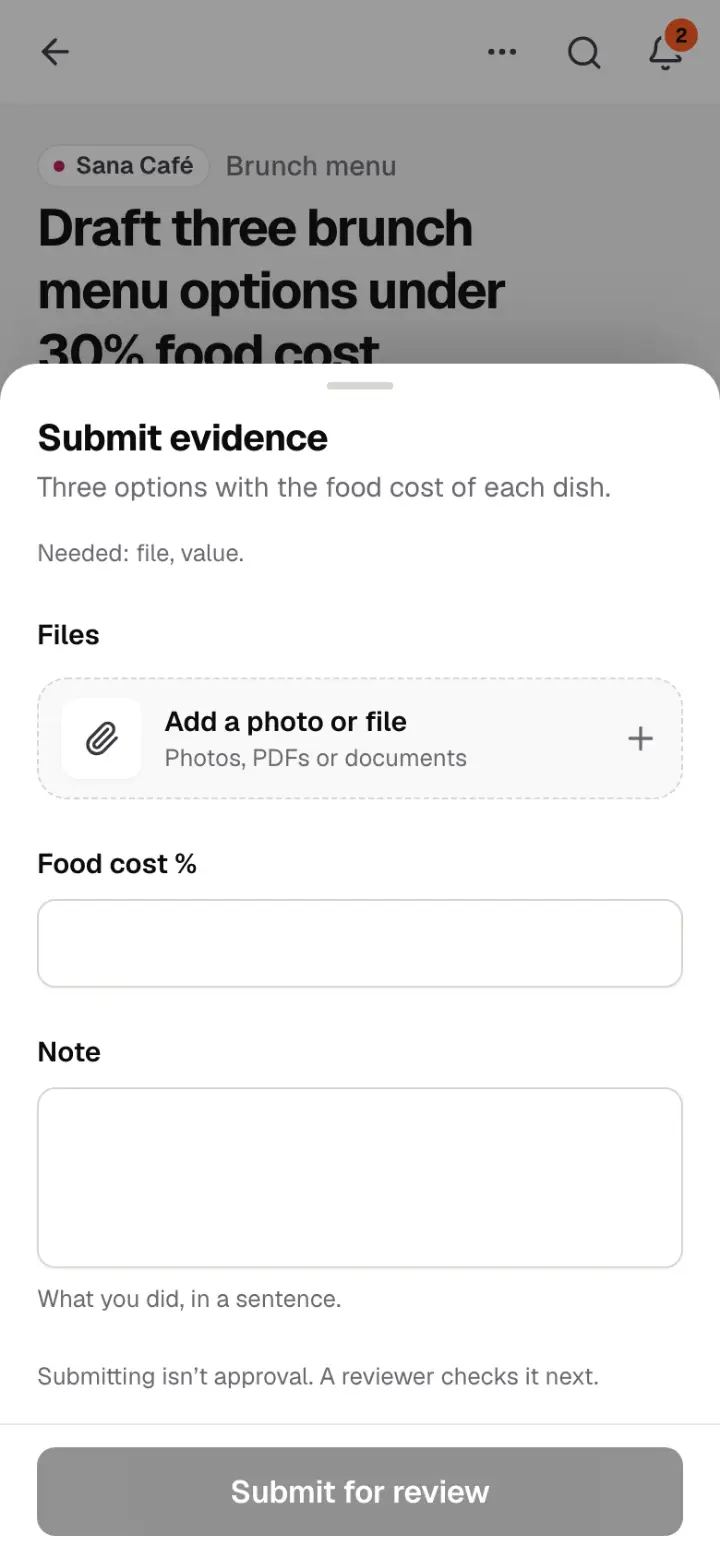
  3. Proof before done. A photo, a file, a number or a note, and a reviewer approves it.
  4. “Unknown” is better than a guess. Leave a date or a name empty if you do not know it.
  5. Nothing is ever deleted. Every change, every revision and every reply is kept in the history.
  6. Drafts survive a lost signal. What you type is saved on your phone until Blade confirms it.

If something goes wrong

The questions people ask most. Tap one to open it.

I never got the invite email

Look in your spam or junk folder, and search your inbox for “Blade”. Still nothing? Ask the person who invited you to tap Send again. Only the newest link works, and only for the email address it was sent to.

My link has expired

An invite lasts seven days. A sign-in link works once, for 15 minutes. A password link works once, for an hour. For an invite, ask for a new one. For the others, go to the sign-in page and ask for a new link.

I forgot my password

On the sign-in page, tap Forgot password?, type your email and tap Send the link. Open the email, choose a new password and tap Save and sign in. Or skip the password: tap Email me a sign-in link.

A photo won’t send on bad Wi-Fi

What you typed is kept on your phone, so nothing is lost. Move somewhere with a better signal, or switch to mobile data, and send it again. Sending again never makes a copy. If the photo itself did not finish uploading, Blade asks you to take it again.

I accepted something by mistake

Open it, tap the ⋯ menu and choose Hand off to pass it to the right person. It stays yours until they accept. If you are not sure who should have it, tell the person who sent it to you.

I can’t find something

Search. On a laptop press ⌘K on a Mac, or CtrlK on Windows. On a phone, tap the magnifying glass at the top. Type part of a project, client, person or task. Still missing? You may not have access to it: ask your coordinator.

I lost my phone

Sign in on another device, open Me and tap Sign out of every device. Every phone and computer signed in to your account is signed out at once. Then tell your coordinator.

Getting help

Stuck? Ask your coordinator. They can send a new invite, change what you can see, and help with anything on your screen.